Softmatic BarcodePlusSoftmatic BarcodePlus creates all common linear and 2D barcode symbologies. Softmatic BarcodePlus exports to many vector and raster formats. Use the codes in all popular graphics design and DTP applications (like Illustrator, Indesign, QuarkXPress, Corel Draw, Xara etc.) as well as spreadsheets, word processors or databases.This app is very easy to use and will prevent you from creating invalid codes. Nevertheless, we recommended that you invest a few minutes to make yourself familiar with the software. Should you encounter problems or have further questions regarding the creation and use of bar codes, please contact us. All screenshots below show the Windows version of the software. The Mac version looks identical and has the same set of features. Current version: Windows: V4 Mac: V4 System requirements: macOS 10.7 or higher Windows 10 or higher Supported barcode symbologies: Retail barcodes: EAN 8, EAN 13, EAN 13 with Add On, ISBN 10 / 13 with Add On, UPC-A, UPC-E, Code 128 GS1 Pharmaceutical codes: PZN 7 / PZN 8, Laetus Warehousing: Code 39, Code 128, Code 2/5 Industrial, Code 2/5 Interleaved, Codabar, ITF-14 2D area matrix codes: Datamatrix, Aztec, QR, PDF417 Databar GS1: Expanded, Expanded Stacked, Omnidirectional, Omnidirectional Stacked, Stacked, Truncated, Limited Note: EAN 13 is referred to by many other names, e.g. JAN, EAN 99, EAN Velocity, etc.. All those codes are ordinary EAN 13. Installation on a Windows PC Run setup.exe and follow the instructions on the screen. After the installer has finished,
launch the app by double-clicking the icon (pictured left).
Run setup.exe and follow the instructions on the screen. After the installer has finished,
launch the app by double-clicking the icon (pictured left).
Right after installation the software runs in trial mode. After entering your license key the app will be fully functional. Make sure to actually type the key in, don't paste it. After entering the last sequence the key will be verified online. Please make sure that the PC is connected to the Internet. Installation on a Mac
If you purchased through our website:
Unzip the archive you downloaded and double-click the DMG file within. When the DMG is mounted, drag the icon to your applications folder. The software starts in trial mode. After entering your license key the app will be fully functional. Make sure to actually type the key in, don't paste it. After entering the last sequence the key will be verified online. Please make sure that the Mac is connected to the Internet. If you purchased through the App Store: A dedicated installation or unlocking of the software is not required. After downloading the app from the App Store, simply launch it by clicking the icon (pictured left). Default settingsWith the first launch of the software, the following settings are used:Code type: EAN 13 EAN Size: SC6 EAN Truncation: 0 Data to encode: 401234567890 Export format: EPS Bounding box: Yes Bar width reduction: 0 The program window at the first launch: 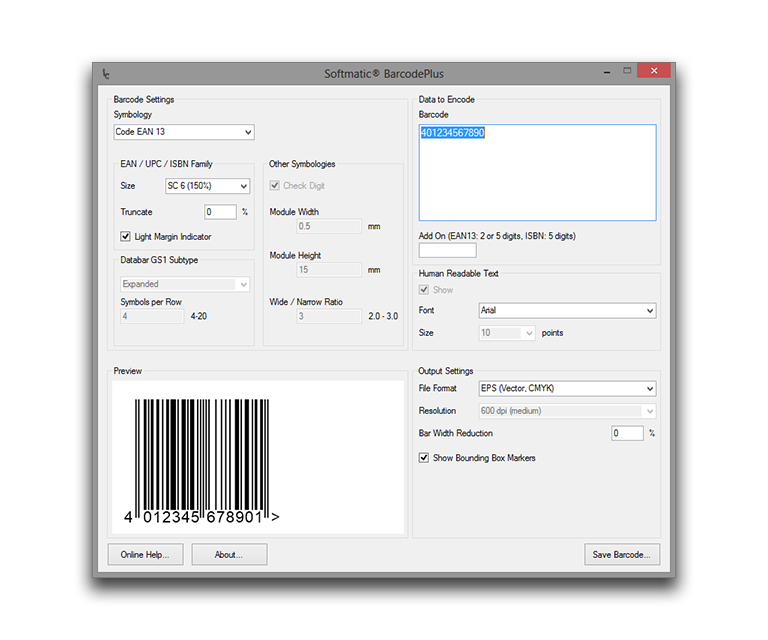
All settings you make in the software are maintained between sessions. Each time you launch the app it will start exactly where you left it the last time. Please note that not all settings are available for all codes. For example, a UPC code is always used with a check digit. Hence, the check digit control is disabled for this barcode symbology. UsageCreating barcodes typically works in four steps:1. Choose barcode type 2. Enter data to encode and set barcode options 3. Choose export format and options 4. Save barcode to file Choose barcode typeChoose the desired barcode type from the list of available codes:Code EAN 8 Code EAN 13 Code ISBN 10 Code ISBN 13 Code UPC-A Code UPC-E Code 128 Code 128 GS1 / EAN / UCC Code 2/5 Interleaved Code 2/5 Industrial Code ITF-14 Code 39 / 39 Extended PZN 7/8 (Pharma code) Laetus (Pharma code) Codabar Datamatrix (2D) PDF417 (2D) QR Code (2D) Aztec Code (2D) Databar GS1 Selecting Databar will also enable selection of a Databar sub type. If you choose a code type that is incompatible with the given data, an error message is displayed. Example: An invalid sequence of digits for EAN 13: 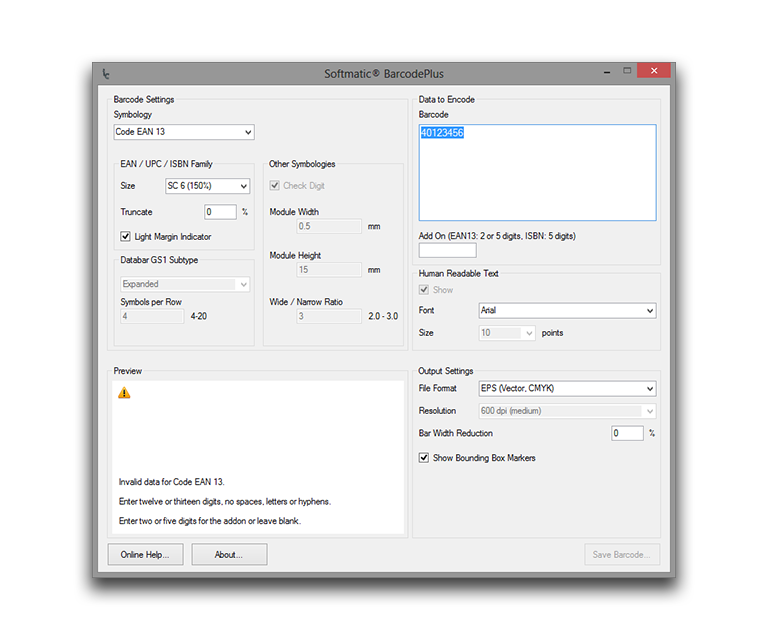
Enter the data to encode and set barcode optionsAfter choosing the barcode type, enter the data to be encoded and make the appropriate settings:
To update the preview, hit <Enter> after you entered your data. * The EAN 13, ISBN 10 und ISBN 13 can carry a satellite, or "add on", barcode. This add on can encode two or five digits. EAN/UPC height is determined by the value for "Truncation". This value is percentage based, i.e. if you enter "50" here the code will have half the standard height. Remember to hit return after entering a value to update the preview. ** To encode non-printable characters, use the tilde, followed by the three digit ASCII code of the character. E.g., to encode a TAB, use ~009. Special characters like german umlauts or accented characters can be encoded directly into the available 2D symbologies. Make sure that your barcode scanner has been set up correctly to transmit that kind of data. Note: With EAN family codes (UPC, EAN, ISBN), the software will always recalculate the respective check digit for the selected code. For example, when using EAN 13, it doesn't matter if you enter 12 or 13 digits. If it's 12, the software will append the check digit, if it's 13 the software will overwrite the last digit with the check digit. This behavior is by design to prevent data entry errors and to guarantee that a valid symbol is created. Notes regarding barcode settings
* With EAN/UPC, the font is set to Helvetica (Mac) or Arial (Win), respectively. The size of the human readable text is determined by the software to ensure that the text fits under the barcode. All retail codes are always created with human readable text. Choose export formatChoose the desired export format from the list of available formats:
If at all possible, prefer vector over raster formats as EPS and SVG are resolution independent and will always result in the best possible output quality. Note that EPS and SVG files do not include the human readable text as outlines. Instead, they reference the selected font. Make sure you have the font available on the computer where the barcode is used eventually. If the target software doesn't support either format, use TIFF. TIFFs are created in the CMYK color space which is preferred by most print shops. Use PNG for barcodes that are used online or on screen like in a browser window. Use JPEG only as a last resort. Export options
Save barcodeClick Save barcode..., to write the barcode to a file. For your convenience, the software will preset the encoded data as the file name.Reset to DefaultsShould you get lost at some point it's easy to reset the app to the default settings as listed above.Mac Select menu Help > Reset Application. Windows Right-click anywhere in the application window and select Reset App to Defaults from the context menu: 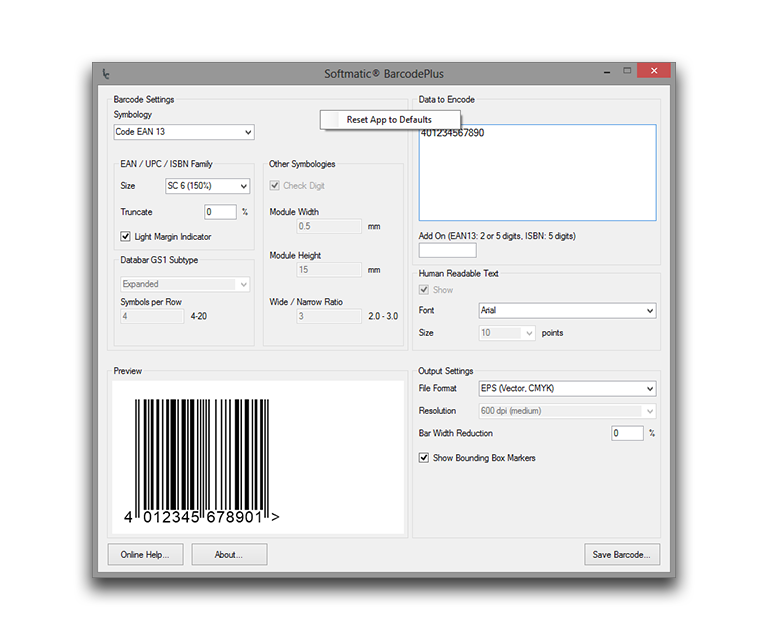
|