Softmatic Barcode for MacSoftmatic Barcode for Mac creates all common retail barcode symbolgies like EAN, UPC and ISBN. Softmatic Barcode exports to many vector and raster formats. Use the codes in all popular graphics design and DTP applications like Illustrator, Indesign, QuarkXPress, Corel Draw, Xara etc.This app is very easy to use and will prevent you from creating invalid codes. Nevertheless, we recommended that you invest a few minutes to make yourself familiar with the software. Should you encounter problems or have further questions regarding the creation and use of bar codes, please contact us. Current version: V4 System requirements: Mac OS X 10.7 ("Lion") or higher Supported code types: EAN 8, EAN 13, EAN 13 w/ Add On, ISBN 10 / 13 w/ Add On, UPC-A, UPC-E Note: EAN 13 is referred to by many other names, e.g. JAN, EAN 99, EAN Velocity, etc.. All those codes are ordinary EAN 13. Installation If you purchased or downloaded through our website:
Unzip the archive you downloaded and double-click the DMG file within. When the DMG is mounted, drag the icon to your applications folder. The software starts in trial mode. After entering your license key the app will be fully functional. Make sure to actually type the key in, don't paste it. After entering the last sequence the key will be verified online. Please make sure that the Mac is connected to the Internet. If you purchased through the App Store: A dedicated installation or unlocking of the software is not required. After downloading the app from the App Store, simply launch it by clicking the icon (pictured left). Default settingsWith the first launch of the software, the following settings are used:Code type: EAN 13 Data to encode: 401234567890 Code size: SC6 Export format: EPS Bounding box: Yes Bar width reduction: 0 Truncation: 0 The program window at the first launch: 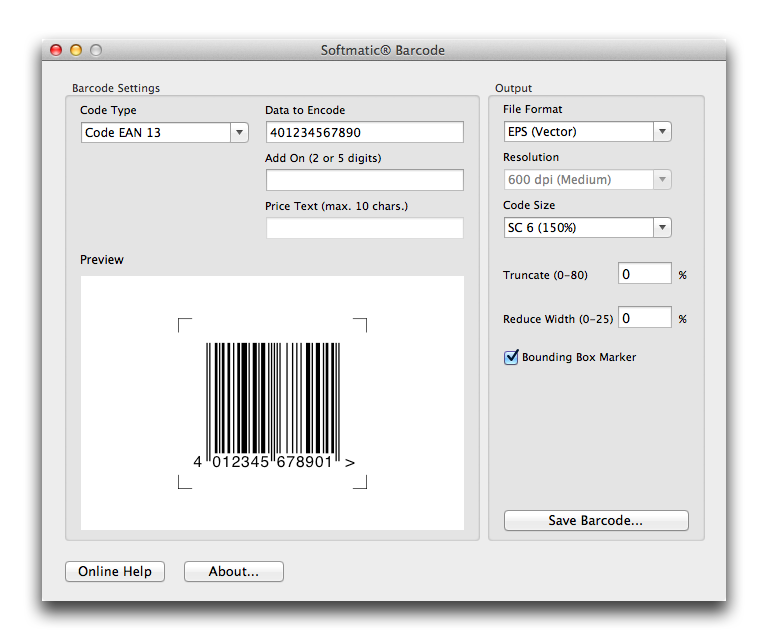
All settings you make in the software are maintained between sessions. Each time you launch the app it will start exactly where you left it the last time. UsageCreating barcodes typically works in four steps:1. Choose barcode type 2. Enter data to encode 3. Choose export format and options 4. Save barcode to file Choose barcode typeChoose the desired barcode type from the list of available codes:
Example: An invalid sequence of digits for EAN 13: 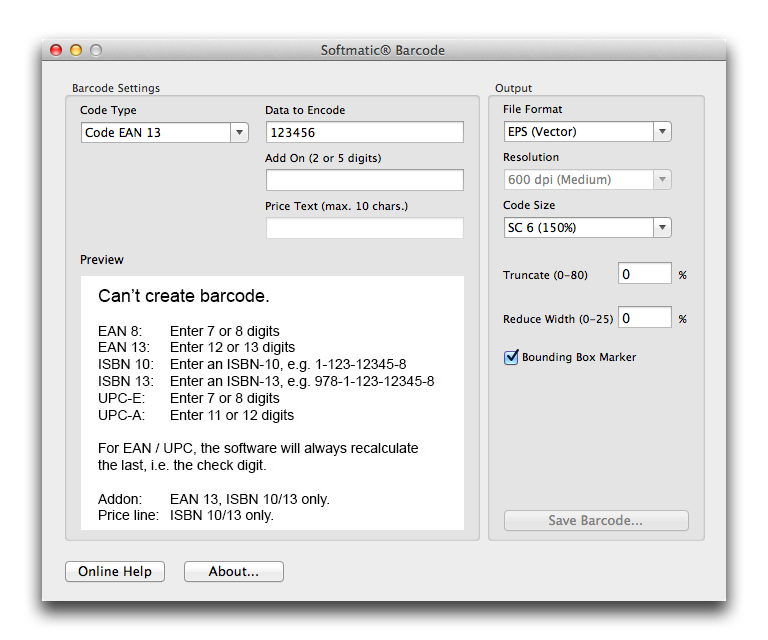
Enter the data to encodeAfter choosing the barcode type, enter the data to be encoded:
Note: To prevent typing errors, the software will always recalculate the respective check digit for the selected code. For example, when using EAN 13, it doesn't matter if you enter 12 or 13 digits. If it's 12, the software will calculate and append the check digit, if it's 13 the software will calculate the check digit and overwrite the 13th digit. The EAN 13, ISBN 10 und ISBN 13 can carry a satellite, or "add on", barcode. This add on can encode two or five digits. ISBN codes can carry an additional line of text right above the add on. Usually pricing information is put here. Note: If you export bar codes as EPS or SVG, this text line can be edited or modified in applications like Illustrator oder Indesign. Choose export formatChoose the desired export format from the list of available formats:
If at all possible, prefer vector over raster formats as EPS and SVG are resolution independent and will always result in the best possible output quality. If the target software doesn't support either format, use TIFF. TIFFs are created in the CMYK color space which is preferred by most print shops. Use the PNG and JPEG options only as a last resort. Export options
Save barcodeClick Save barcode..., to write the barcode to a file. For your convenience, the software will preset the encoded data as the file name. |